Expert: A Handwritten Font That Fits Your Workflow—Not the Other Way Around
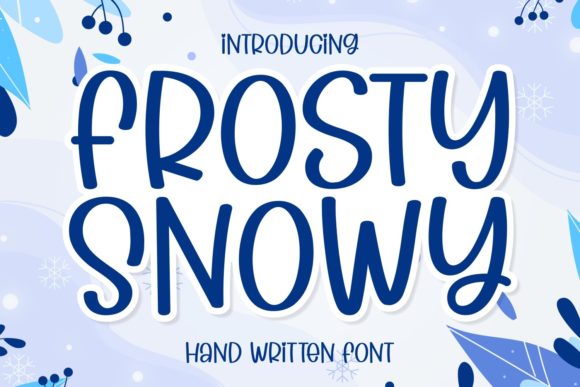
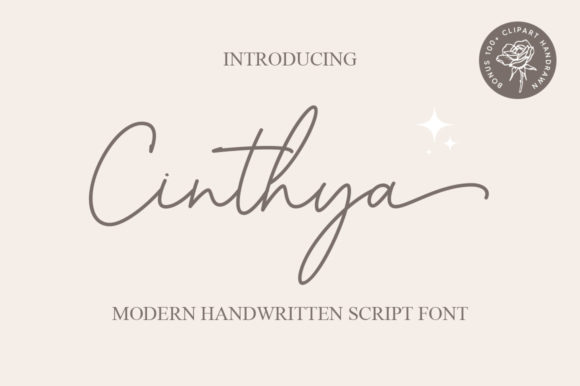
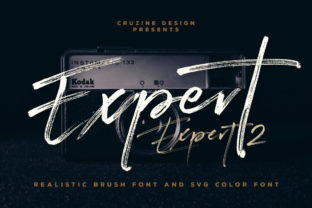
Expert isn’t just another display font you download and forget. It’s a fun, bold handwritten typeface with a cool, confident vibe—designed to inject personality without sacrificing clarity. Unlike decorative scripts that fade into the background or overwhelm content, Expert holds attention while staying legible at scale. It works where handwriting *matters*: in brand voice, creative briefs, workshop materials, pitch decks, social visuals, and even internal notes meant to feel human—not robotic.
Where Expert Fits in Real Workflows
Think of Expert as a tool you reach for when tone is part of the deliverable—not just an afterthought. It doesn’t replace your system font or body text; it complements it. You’ll use it most effectively when you’re already past the drafting phase and moving into refinement, presentation, or activation.
For example:
- A marketer finalizing a campaign mood board might layer Expert over a photo collage to signal “this is the voice we’re leaning into”—not as filler, but as intentional texture.
- An educator designing a slide deck for student engagement might use Expert for section headers and key takeaways, creating visual rhythm that supports retention without distracting from core content.
- A small business owner updating their website’s “About” page could apply Expert to short quotes or founder statements—adding warmth and authenticity without redesigning the entire layout.
In each case, Expert enters the process late enough to serve purpose—but early enough to shape perception. It’s rarely the first tool you open, but often the one that makes the difference between “good enough” and “feels right.”
Before, During, and After: Timing Matters
Before: Use Expert to prototype tone. Before committing to a full brand refresh or campaign rollout, test headlines, taglines, or call-to-action buttons in Expert alongside your existing palette. Does it align with the energy you want to project? Does it clash with your primary font hierarchy—or reinforce it? This isn’t about aesthetics alone; it’s about validating emotional resonance before investing time in execution.
During: Deploy it selectively in collaborative tools. Drop Expert into Figma frames for UI mockups where user-facing microcopy needs character (e.g., onboarding tips, error messages, or feature highlights). In Notion or Obsidian, apply it via image embeds or exported SVGs for recurring templates—like weekly reflection prompts or client feedback summaries—where visual consistency signals intentionality.
After: Let it extend impact beyond delivery. When sharing a finished report, add a cover page in Expert with a personalized note or summary insight. When archiving a project, export key visuals using Expert as a subtle signature—making future reference faster because the visual cue triggers memory. It becomes part of your output’s fingerprint, not just decoration.
How Expert Interacts With Your Existing Tools and Habits
Expert integrates cleanly with platforms that support custom fonts—Figma, Adobe Creative Cloud, Canva (via upload), and modern web builders like Webflow or Squarespace. It does *not* work well in plain-text environments (email clients, basic CMS editors) or low-fidelity wireframing tools. That’s not a limitation—it’s a signal: Expert belongs where design and message converge.
It pairs best with clean, neutral sans-serifs (like Inter, Helvetica Neue, or even system fonts) for body copy. Avoid pairing it with other handwritten or script fonts—competition dilutes impact. And skip using it for long paragraphs or data tables; its strength lies in brevity and emphasis.
You’ll also find it works differently across devices. On high-DPI screens, its boldness reads with confidence. On smaller mobile displays, use it at slightly larger sizes—and always test contrast against backgrounds. A light gray background with dark Expert text often outperforms white-on-black for readability and mood.
Practical Implementation Tips You Can Apply Today
Start small. Pick *one* recurring asset—your email signature, a recurring Notion template, or your team’s weekly standup agenda—and swap in Expert for just the title line. Observe how it changes the feel. Does it make the item feel more approachable? More memorable? Does it slow down scanning? Adjust accordingly.
Build a style guide snippet—not formal, just personal. Note down: “Use Expert only for headings up to 36px, never for body text. Always pair with Inter Regular at 16px/1.5 line height. Never use on photos with busy textures.” These aren’t rules for everyone—they’re guardrails for *your* consistency.
When collaborating, name files clearly: “Logo-Expert-Header.svg”, not “coolfont.svg”. That reduces friction for teammates who may not know the font by name—and makes version control easier if you ever need to swap or audit usage.
Export smartly. For web use, convert Expert to WOFF2 and host it locally rather than relying on third-party font services—especially if speed or privacy matters to your audience. For print or PDF, outline the text in Illustrator or InDesign before exporting to avoid substitution issues.
What Makes Expert Sustainable—Not Just Stylish
Long-term usability depends less on novelty and more on predictability. Expert succeeds because its quirks are consistent: the slight tilt, the confident stroke weight, the way certain letters (like “g” or “y”) loop with relaxed precision. That consistency builds recognition—not just for your audience, but for *you*. Over time, you’ll develop instinct for where it fits and where it doesn’t.
That instinct grows through repetition—not theory. Try this: For one week, use Expert only for handwritten-style annotations in your digital notebook. Not for titles. Not for exports. Just for your own notes—capturing ideas, questions, or reminders. Notice how quickly you begin associating that visual rhythm with clarity, energy, or ownership.
Also consider licensing. Expert is typically licensed per platform or use case (web, desktop, app). If you’re a freelancer juggling client projects, verify whether your license covers redistribution—or whether each client needs their own. Skipping this step can create quiet friction later, especially when handing off assets.
Real Integration Looks Like This
Here’s how one freelance educator uses Expert across her workflow:
- Planning: She sketches workshop outlines in paper notebooks—then scans and adds Expert-drawn headers in Procreate before digitizing.
- Building: In Figma, she applies Expert to slide titles and interactive element labels—always testing against her accessibility contrast checker.
- Delivering: She exports key slides as PNGs with Expert text embedded, then drops them into her LMS—knowing they’ll render reliably, even if students view offline.
- Reviewing: After each session, she saves a screenshot of the most engaged slide—using Expert’s headline as a visual bookmark for what resonated.
No overhaul. No extra plugins. Just deliberate placement where it supports meaning—not noise.
Expert doesn’t ask you to change how you work. It asks you to notice where voice lives in your process—and give it room to show up clearly. Whether you’re refining a sales page, preparing a talk, documenting a process, or simply making your to-do list feel less transactional, Expert offers a quick, reliable way to say: This matters. And so do you.